



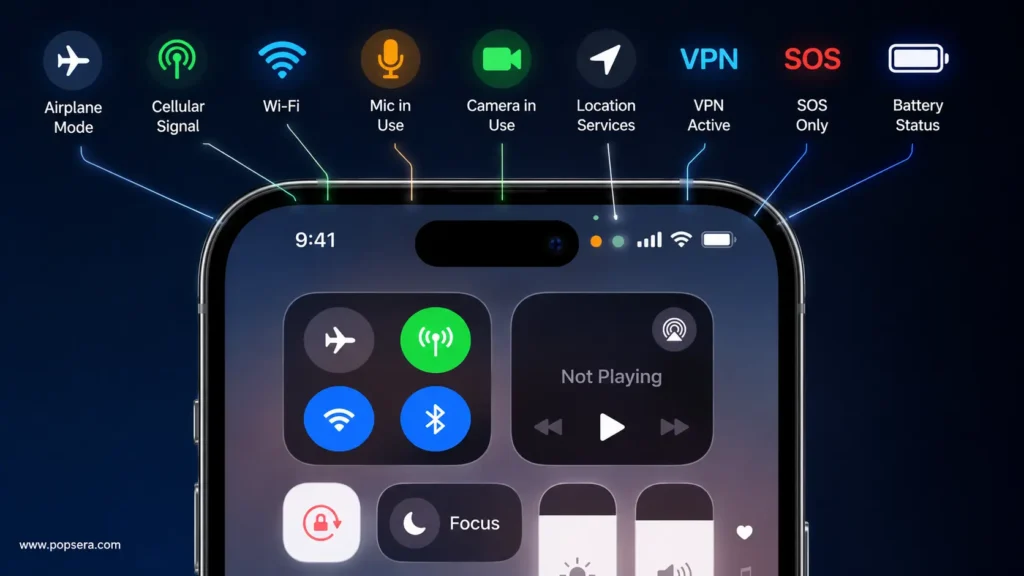

iPhone symbols at the top of the screen usually tell you what your phone is doing right now. Some icons show signal, Wi-Fi, battery, or Focus mode. Others point to privacy features, like when an app uses your camera, microphone, or location.
First, don’t panic. Most iPhone symbols are not warnings. However, a few are worth checking if you do not recognize them. Apple’s official iPhone status icons guide explains that icons in the status bar give quick information about your iPhone, while iPhones with Face ID may show extra icons in Control Center.
For more simple device explainers, check Popsera’s Tech coverage. You can also follow our Trending section for quick updates on features and app changes people are searching for now.
The iPhone symbols people check most often
If you need the quick version, start here:
- Orange dot or orange square: An app is using your microphone.
- Green dot: An app is using your camera, or your camera and microphone together.
- Arrow icon: An app or system service recently used your location.
- SOS or SOS only: Your iPhone cannot reach your normal cellular network, but emergency calling may still work.
- VPN: Your iPhone routes traffic through a virtual private network.
- Airplane icon: Airplane Mode is on.
- Yellow battery icon: Low Power Mode is on.
- Lock with circular arrow: Portrait Orientation Lock is on.
- Moon or Focus icon: Do Not Disturb or another Focus mode is active.
So, if a symbol appears suddenly, match it to the setting or app you used last. That usually solves the mystery fast.
Orange dot, green dot, or orange square
The orange and green dots are privacy indicators. According to Apple’s orange and green indicator guide, an orange dot means an app is using your microphone. A green dot means an app is using your camera, or your camera and microphone together.
However, the dot does not automatically mean someone is spying on you. A phone call, FaceTime call, voice memo, camera recording, dictation, or voice message can trigger it. Still, it gives you a useful warning when an app accesses sensitive hardware.
To check it, swipe down from the top-right corner and open Control Center. Then look for the app name near the privacy indicator. If the app does not make sense, go to Settings > Privacy & Security, then check Microphone or Camera. Apple’s iPhone hardware access guide explains how to control which apps can use those features.
SOS, 5G, LTE, and signal bars
Signal icons tell you what kind of mobile connection your iPhone has. Bars show cellular strength. Meanwhile, labels like 5G, LTE, 4G, 3G, E, or G show the network type your carrier currently provides.
If you see SOS or SOS only, your iPhone cannot connect to your regular carrier service. However, it may still place emergency calls through another available network in supported areas.
If SOS will not go away, try these steps first: move to a better coverage area, turn Airplane Mode on and off, restart your iPhone, and check for a carrier settings update. If the problem continues, contact your carrier because the issue may come from coverage, account status, or the SIM/eSIM connection.
The arrow icon means location access
An arrow near the top of the screen usually means an app or system service used Location Services. For example, Maps, Weather, Find My, ride-share apps, and delivery apps may all request your location.
Because location access can affect privacy and battery life, it is worth reviewing. Go to Settings > Privacy & Security > Location Services. Then choose each app and decide whether it should use your location Never, Ask Next Time Or When I Share, or While Using the App.
For most apps, While Using the App gives the cleanest balance. It lets the app work when you need it, but it does not give constant background access.
VPN, hotspot, and Wi-Fi calling icons
VPN means your iPhone routes its internet connection through a virtual private network. Sometimes that comes from a work profile, school profile, privacy app, or security app. If you did not turn it on, check Settings > VPN or Settings > General > VPN & Device Management.
Personal Hotspot can appear when your iPhone shares its internet connection with another device. It can also appear when your iPhone connects through someone else’s hotspot.
Wi-Fi Calling means your iPhone can place calls over Wi-Fi instead of relying only on cellular service. That can help when you have weak signal indoors.
Battery symbols: yellow, charging, and accessory battery
A yellow battery icon means Low Power Mode is on. That mode helps your iPhone save battery by reducing some background activity.
If you see a charging symbol, your iPhone is charging. Sometimes, your iPhone may pause or manage charging because of heat, battery protection, or power conditions.
You may also see a separate battery icon for connected Bluetooth accessories. For example, headphones can show their own battery level near the top of the screen or inside Control Center.
Focus, alarm, lock, and rotation icons
Some iPhone symbols appear only after you turn on a specific setting. So, if one seems unfamiliar, check Control Center before changing anything else.
- Focus or Do Not Disturb: Notifications may stay silent or filtered.
- Alarm: You have an alarm set in the Clock app.
- Lock: Your iPhone is locked.
- Portrait Orientation Lock: Your screen will stay in portrait mode.
- Headphones: Bluetooth headphones are connected or available nearby.
- AirPlay: Your iPhone is using AirPlay.
- CarPlay: Your iPhone has connected to CarPlay.
If a Focus icon keeps appearing, open Control Center, tap Focus, and turn off the active mode. Then check whether you scheduled that Focus to turn on automatically.
How to identify any symbol fast
Start with Control Center. On iPhones with Face ID, swipe down from the top-right corner. Then look for extra status details near the top.
Next, check the setting that matches the symbol. For privacy dots, review Camera and Microphone permissions. For arrows, check Location Services. For VPN, check VPN settings. For SOS or weak service, check cellular coverage and carrier settings.
Finally, restart your iPhone if the icon looks stuck. A restart will not fix every network or account issue, but it often clears temporary display glitches.
Quick answers
What does the orange dot at the top of my iPhone mean?
The orange dot means an app is using your microphone. If you see an orange square instead, your iPhone may have the Differentiate Without Color accessibility setting turned on.
What does the green dot at the top of my iPhone mean?
The green dot means an app is using your camera, or your camera and microphone together.
What does SOS at the top of my iPhone mean?
SOS means your iPhone cannot connect to your normal cellular service, although emergency calling may still work through another available network.
Why is my iPhone battery icon yellow?
A yellow battery icon means Low Power Mode is on.
What does the arrow at the top of my iPhone mean?
The arrow means an app or system service used your location recently.
For more simple device and tech explainers, Popsera also covers how AI is changing search in Google’s AI agent and internet search breakdown, what to expect from wearable tech in the Oura Ring 5 release date and features guide, and common device problems like why a Fitbit is not charging.
First, don’t panic. Most iPhone symbols are not warnings. However, a few are worth checking if you do not recognize them. Apple’s official iPhone status icons guide explains that icons in the status bar give quick information about your iPhone, while iPhones with Face ID may show extra icons in Control Center.